
You’ve finished your resume — now you need a file you can attach to applications, upload to job portals, or print for an interview. A PDF is the safest choice: it looks the same on every device, keeps your fonts and layout intact, and is accepted by almost every applicant tracking system (ATS). This guide shows you three ways to get it right.
1. Download your resume as a PDF (fastest)
ResumeCreating can create the PDF for you with the correct page size and margins already set.
- Sign in and open My Resumes.
- Choose the resume you want to export and open Download & Share.
- Check the Live preview to make sure everything fits on the page.
- Click Download PDF. The file is saved to your device in a few seconds.
On the same page you can copy your public resume link, share it by email or on LinkedIn, or download a QR code to add to a business card or printed resume.
2. Save as PDF from your browser
If you prefer to control the print settings yourself, you can save your public resume page as a PDF in Google Chrome, Edge, or any Chromium browser.
- Open your public resume link (it looks like
/cv/your-nickname) in the browser. - Press Ctrl + P on Windows or Cmd + P on Mac to open the print dialog.
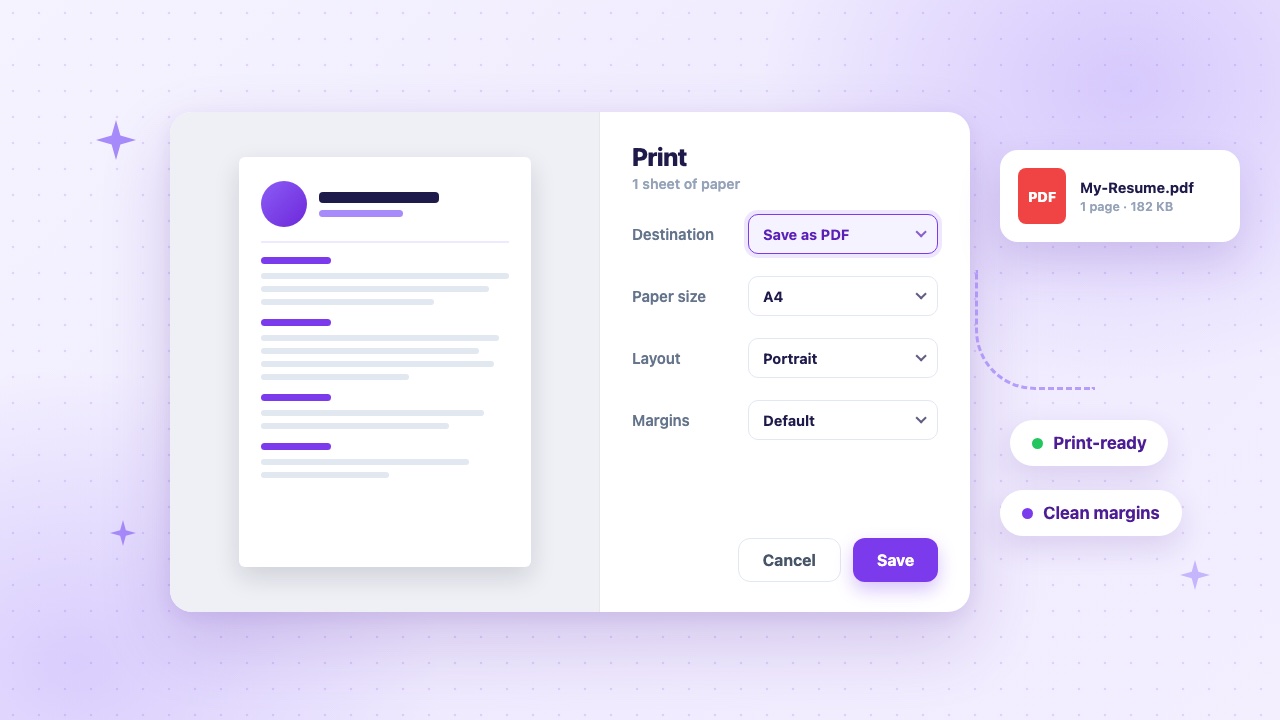
- Next to Destination, click Change (or open the dropdown) and choose Save as PDF.
- Set Layout to Portrait.
- Open More settings and pick your Paper size — A4 in most countries, Letter in the US and Canada.
- Leave Margins on Default, or choose Custom and set the top, bottom, left, and right margins yourself.
- Untick Headers and footers so the date, page title, and web address don’t appear on your resume.
- Tick Background graphics to keep your template’s colours and section highlights.
- Click Save and choose where to store the file.
3. Print a paper copy
Bringing printed copies to an interview is still a good habit. Follow the same steps as above, but choose your printer as the destination instead of “Save as PDF”. Then:
- Colour: print in colour if your template uses accent colours; black and white works for minimal templates.
- Scale: keep it at 100% (or “Default”) so the text stays readable.
- Paper: use clean, bright white paper — 90–100 gsm feels noticeably more professional than standard copy paper.
- Copies: bring at least three: one for each interviewer and one for yourself.
Recommended print settings
| Setting | Recommended value | Why |
|---|---|---|
| Destination | Save as PDF | Produces a file that looks the same everywhere. |
| Layout | Portrait | The standard orientation for resumes. |
| Paper size | A4 or Letter | Match the country you’re applying in. |
| Margins | Default or Custom | Keeps content away from the edges without wasting space. |
| Scale | 100% | Shrinking text makes it hard to read. |
| Headers and footers | Off | Removes the date and URL from the page. |
| Background graphics | On | Keeps your template’s colours and shapes. |
Fixing common problems
- An extra blank page at the end: reduce the custom margins slightly or remove an empty line at the bottom of your last section.
- Colours or icons are missing: turn on Background graphics under More settings.
- A date or web address appears at the top: turn off Headers and footers.
- Text is cut off at the edges: set the scale back to 100% and use Default margins.
- Your resume runs onto a second page: tighten your bullet points — our resume writing guide shows how to keep it concise.
Name your file professionally
Recruiters download hundreds of files named resume.pdf. Make yours easy to find:
FirstName-LastName-Resume.pdf
For example: “Ritesh-Kumar-Resume.pdf” or “Ritesh-Kumar-Marketing-Manager-Resume.pdf”.
Final checklist before you send
- Open the PDF and read it once more — check spelling, dates, and contact details.
- Make sure every link (email, LinkedIn, portfolio) is clickable.
- Confirm the page count: one page for most people, two for senior roles.
- Keep the file size small (under 2 MB) so it uploads easily to job portals.
- Attach it to a clear application email — see how to email your resume.
Ready to export? Pick a resume template, fill in your details, and download a polished PDF in minutes.