
Applying for a job in another country often means your resume must speak the local language. A strong English resume is not enough for many roles in Spain, France, Germany, Japan, the Middle East, or India. Recruiters want to read your experience in their language — and they want it formatted like a professional resume, not a raw Google Translate paste.
This guide explains why resume translation matters, when you need it, and exactly how ResumeCreating’s Translate feature works so you can turn one polished resume into a multilingual version in minutes.
1. Why translate your resume?
Employers hire people they understand quickly. A translated resume helps you:
- Pass the first screen: Hiring managers skim in their native language.
- Match local job boards: Keywords in Spanish, French, German, Hindi, and other languages improve search matches.
- Show seriousness: Submitting in the local language signals you researched the market.
- Keep one source of truth: Edit in English, then generate language versions without rebuilding from scratch.
Tip: Translate after your English content is strong. Bad bullets in English become bad bullets in every language. Fix the story first, then translate.
2. When do you need a translated resume?
| Situation | What to do |
|---|---|
| Job posting is in another language | Submit a resume in that language (or bilingual if the company uses English internally). |
| Moving abroad / visa / relocation roles | Provide a local-language resume plus your English original when asked. |
| Multinational company, English JD | English is usually fine; keep a translated copy ready for local HR. |
| Government, education, or public-sector roles | Often require the official language of the country. |
| Freelancing for overseas clients | A translated one-pager builds trust on local platforms. |
3. How ResumeCreating Translate works
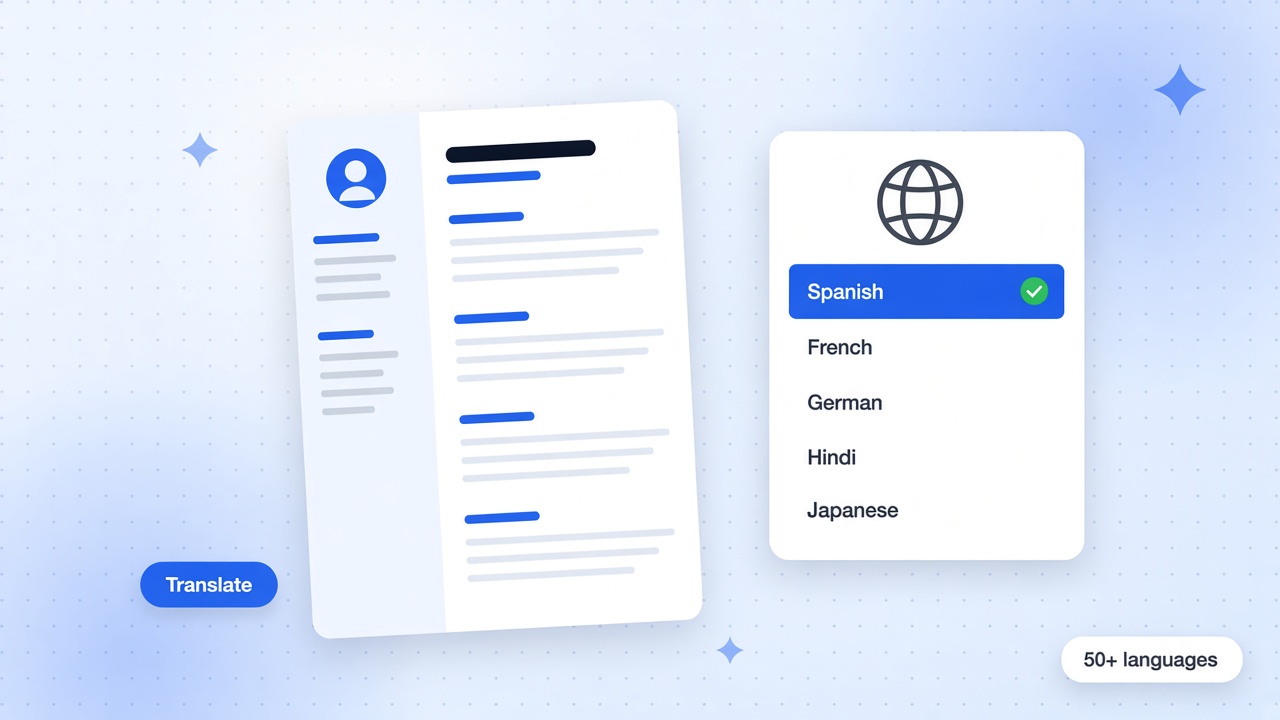
ResumeCreating includes a dedicated Translate tab inside the resume builder. You write and polish your resume in English (or your hub language), then convert the content — summary, experience, education, projects, skills, and more — into the language you choose. The app UI stays in English; only your resume text changes.
Step-by-step
- Create or open your resume in the resume builder. Complete Experience, Summary, Education, Skills, and any other sections you need.
- Open the Translate tab (globe icon) in the builder. The lead text is simple: edit in any tab, then pick a language — we translate your latest content.
- Search or select a language from 50+ options (Spanish, French, German, Hindi, Arabic, Chinese, Japanese, Portuguese, and many more).
- Preview the translation on your live template. Section titles, dates, and body text update so you can see the full resume in that language.
- Apply and save so the translated text is stored on your resume. Your current language is shown clearly at the top of the Translate panel.
- Download or share as PDF when it looks right — same templates, same layout, new language.
Re-translate with latest edits: If you change Experience or Summary after translating, use Re-translate with latest edits so the language version includes your newest text. You can also Restore English to bring back your original from the saved snapshot.
4. What gets translated (and what stays the same)
| Translated | Usually kept as-is |
|---|---|
| Professional summary / objective | Email, phone, LinkedIn URL |
| Job titles, company descriptions, bullets | Brand names and product names (review them) |
| Education titles and descriptions | Official degree abbreviations when locally recognized |
| Projects, awards, skills, tools, courses | Technical tool names (React, AWS, Excel) |
| Section labels and date wording (e.g. “Present”) | The builder interface language (stays English) |
If a short phrase did not convert cleanly, edit that field manually in the form — the Translate panel notes that you can fix any leftover text by hand.
5. Languages you can translate into
ResumeCreating supports a large set of target languages for resume content, including:
- Europe: Spanish, French, German, Italian, Portuguese, Dutch, Polish, Romanian, Swedish, Norwegian, Finnish, Greek, Czech, and more
- Asia: Hindi, Chinese, Chinese (Traditional), Japanese, Korean, Thai, Vietnamese, Indonesian, Malay, Tagalog, Urdu, Bengali
- Middle East & others: Arabic, Persian, Hebrew, Turkish, Russian, Ukrainian, Swahili, and additional regional languages
Use the search box in the Translate tab to find a language quickly. English remains your editing original — pick it anytime to work from the source version again.
6. Best practices after machine translation
Automated translation is fast. A quick human pass makes it interview-ready:
- Check job titles: Local markets often use specific titles (e.g. “Ingeniero de software” vs a literal phrase).
- Keep numbers and metrics: Percentages, revenue, and team sizes should stay accurate.
- Review soft phrases: Idioms like “hit the ground running” rarely translate well — rewrite those bullets before translating.
- Confirm section order: Layout stays the same; only wording changes. That helps ATS and human readers.
- Native review when stakes are high: For executive roles or regulated industries, ask a fluent speaker to skim once.
English: “Cut checkout load time by 45% and raised conversion 12%.”
Spanish-ready goal: keep the same metrics, use a natural local phrasing for “checkout” and “conversion,” and keep the action verb strong.
7. Translate vs rewrite from scratch
| Approach | Best for | Trade-off |
|---|---|---|
| Translate in ResumeCreating | Most applicants who already have a strong English resume | Fast; needs a short review pass |
| Fully rewrite in the local language | Senior roles, creative portfolios, legal/medical CVs | Highest quality; takes much longer |
| Bilingual resume | Countries where both English and local language are used | Longer document; use only when expected |
For most international applications, the winning workflow is: write a sharp English resume → translate → light edit → export PDF.
8. Pair translation with a strong English original
Translation amplifies whatever you already wrote. Before you open the Translate tab:
- Use achievement bullets (action + result), not duty lists — see our complete resume writing guide.
- Tailor keywords to the role with job-description matching.
- Pick a clean template that stays readable after language expansion (some languages need more space).
- Run an ATS-minded check with our ATS resume guidance.
9. Daily usage and practical limits
Translation uses a fair daily allowance so the service stays fast for everyone. Cached text you already translated does not consume extra quota. If you hit the daily limit, you can continue editing and try again the next day — or restore English and keep polishing your source resume.
10. Final checklist before you send
- English (source) resume is tailored and free of typos
- Correct target language selected in the Translate tab
- Summary, experience bullets, and skills look natural in that language
- Job titles and company names reviewed
- Dates and “Present” wording look correct on the preview
- Contact details still accurate (email/phone unchanged)
- PDF downloaded with a clear name like
Firstname-Lastname-Resume-ES.pdf - English version saved or restorable if you need it again
Start translating your resume today
You do not need a separate document for every country. Build once in ResumeCreating, open the Translate tab, choose your language, review the preview, and download a professional local-language resume. Start in the free resume builder, explore resume examples for your industry, then convert your content when you are ready to apply abroad.